In a nutshell
- 📍 Move your router to a central, elevated, open spot; avoid cupboards, TVs, and metal surfaces—better placement cuts obstacles and interference for instant speed gains.
- 🚦 Put devices on the right band: 5 GHz for laptops/TVs/consoles, 2.4 GHz for smart home and range; use Wi‑Fi 6E (6 GHz) for same‑room, ultra‑fast links.
- 📶 Choose cleaner channels: on 2.4 GHz use 1/6/11; on 5 GHz try 36/40/44/48 and avoid unstable DFS if radar is nearby; prefer 20 MHz (2.4) and 80 MHz (5).
- 🧪 Test and lock in: run before/after speed and latency checks in key rooms, then use Smart Connect or separate SSIDs (“Home‑5G”/“Home‑2G”) to keep priority devices on faster lanes.
- 🔒 Maintain gains: update router firmware, schedule quick reboots, secure with WPA2/WPA3, disable legacy modes/unused guest networks; consider a single mesh node only if coverage still lags.
Your home internet can feel sluggish for reasons that have nothing to do with your broadband plan. Good news: you can fix most of it without tools, jargon, or a call-out. This two-step trick takes minutes and costs nothing, yet it often doubles practical speed in the rooms that matter. Step one moves your kit; step two tells it which lanes to use. Simple. Effective. No coding, no command lines, no stress. Think of it as a spring clean for your signal. With a couple of tiny changes, that buffering wheel vanishes and your video calls stop freezing. Wi‑Fi should be invisible. Let’s make it feel that way.
Step 1: Put Your Router in the Right Place
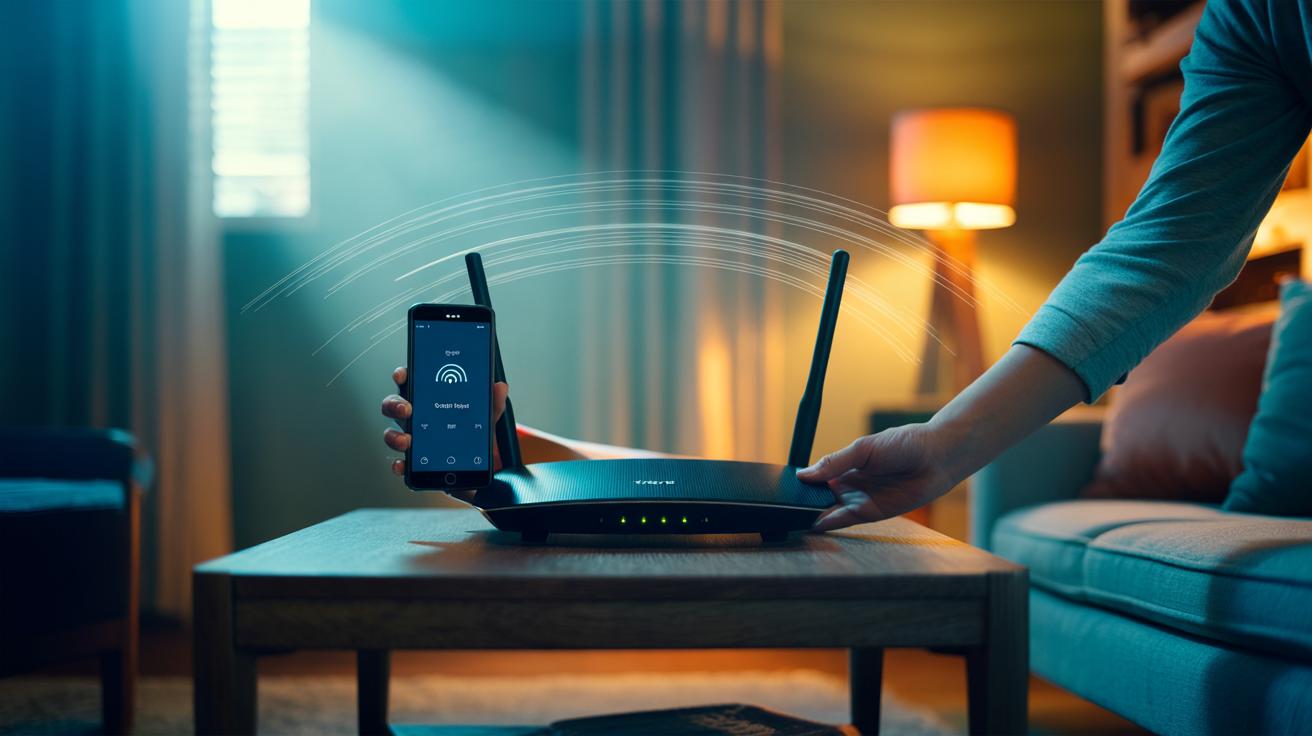
Where you park the box matters more than most settings. Distance and obstacles kill speed. Aim for a central, elevated spot, in the open. Not the floor. Not behind the telly. Not inside a cupboard. Router placement is physics: radio waves like clear air. Thick brick, steel appliances, and mirrors reflect and absorb signal. Microwaves, baby monitors, cordless phones, and Bluetooth speakers add interference that quietly slows everything down.
Try this quick shuffle: unplug, move the router one or two metres higher and away from large metal objects, then reconnect. Run a speed test on your phone in three locations you actually use—sofa, kitchen table, bedroom. Short test. Big insight. If upstairs is weak, place the router on the ground floor under the area you want to serve, not at the far end of the hallway. Corners look tidy, but they waste coverage outside your home. Height equals coverage; clutter equals congestion. If you must keep it near the master socket, use a longer Ethernet cable to give the router breathing space. Small move. Stronger bars.
Step 2: Pick the Best Band and Channel
Now give your network the fast lane. Most routers broadcast two bands: 2.4 GHz (longer range, slower) and 5 GHz (shorter range, faster). If yours supports Wi‑Fi 6E, you’ll also see 6 GHz (very fast, best in the same room). Use 5 GHz for laptops, TVs, and consoles; leave 2.4 GHz for smart plugs and older kit. If your router allows it, name the bands separately—e.g., “Home‑5G” and “Home‑2G”—so you can choose the faster one on key devices. Otherwise, enable “Smart Connect” and let the router steer, then double-check your important gadgets actually land on 5 GHz.
Channels matter too. In the UK, 2.4 GHz only has three clean options: 1, 6, 11. Pick the quietest. On 5 GHz, start with 36/40/44/48. If you live near an airport or the coast, avoid DFS channels (100+), which can pause when they detect radar. Prefer 20 MHz width on 2.4 GHz (less overlap) and 80 MHz on 5 GHz (more speed). When in doubt, try “Auto” for a day, then lock in the best performer. One clean channel beats five noisy ones.
| Band | Best For | Channels to Try (UK) | Channel Width |
|---|---|---|---|
| 2.4 GHz | Range, smart home, older phones | 1, 6, 11 | 20 MHz |
| 5 GHz | Streaming, gaming, laptops | 36/40/44/48 (avoid DFS if unstable) | 80 MHz |
| 6 GHz (Wi‑Fi 6E) | Same‑room ultra‑fast links | Auto (low congestion) | 80–160 MHz |
Keep the Boost: Two Quick Checks
Lock in your gains with two habits that require zero expertise. First, update and restart. Open your router’s app or web page and tap Firmware Update if it’s offered; schedule a weekly overnight reboot if there’s a timer. Fresh software fixes bugs, and a clean start frees memory. A 60‑second restart can restore hours of smooth streaming. Second, secure and simplify. Use WPA2/WPA3 security with a unique passphrase to stop neighbours’ devices latching on and stealing airtime. Turn off any legacy “b” modes and guest networks you don’t use.
Do a before‑and‑after test. Stand by the router: run a speed and latency check. Repeat in your slowest room. Note the results for morning and evening; congestion changes by time of day. If 2.4 GHz is still crowded, keep it for smart devices only and force your phone and laptop onto 5 GHz. If coverage remains patchy across floors, consider a single mesh node to fill the gap—but only after trying these two steps. Free fixes first, new kit later.
Two moves. Better signal. Happier screens. You’ve relocated the router so the airwaves work for you, then given your devices cleaner lanes with the right band and channel. The difference is immediate: snappier apps, steadier calls, sharper streams. Keep an eye on those channels once a month, especially in flats where neighbours add new routers. If you had to pick just one change, which made the biggest improvement in your home—the placement shift or the channel switch—and where do you still want speed to feel instant?
Did you like it?4.4/5 (25)